Have you ever needed to know exactly what motherboard is inside your computer? Maybe you want to upgrade your RAM. Perhaps you need to download new drivers. Or you might just be curious about the parts that make your PC run.
Knowing your motherboard model is like knowing the foundation of your house. It tells you what you can build upon. It tells you what parts are compatible. But finding this information can feel tricky if you don’t know where to look.
The good news is that you don’t need to be a tech expert. You don’t even need to open your computer case. In this guide, I will show you several simple ways to find this information. These methods work for all kinds of users. Whether you are a beginner or a pro, you will find a way that works for you. We will use tools you already have on your computer. Let’s get started and solve this mystery together.
Why You Need to Know Your Motherboard Model
Before we jump into the “how,” let’s talk about the “why.” Why is this little piece of information so important? Think of your motherboard as the central hub of your computer. It connects everything together. Every part, from your processor to your mouse, plugs into it.
When you want to upgrade your computer, the motherboard decides what you can use. For example, if you want more memory, you need to know what type your board supports. Is it DDR4 or DDR5? How many slots do you have? The motherboard holds these answers.
Also, keeping your computer healthy requires the right drivers. Drivers are small software programs that help your operating system talk to your hardware. If you download the wrong driver, your computer might act up. Knowing the exact model ensures you get the right update every time. It saves you from headaches and keeps your machine running fast. So, taking five minutes to find this out is a smart move for anyone who uses a PC.
Method 1: Using the Windows System Information Tool
This is often the fastest way to get your answer. Windows comes with a built-in tool called “System Information.” It’s like a library for all your computer’s specs. You can find details about your processor, your memory, and yes, your motherboard here.
To open it, just click on the Start menu. Type “System Information” into the search bar. Then, click on the app to open it. It might look a little busy at first, but don’t worry. Once the window opens, look for a section called “System Summary.” This is the main page.
Now, scan through the list on the right side. You are looking for two specific lines. One is called “BaseBoard Manufacturer.” This tells you who made your motherboard, like Dell, HP, ASUS, or MSI. Right below that, you will see “BaseBoard Product.” This is the exact model number you need. It is really that simple. You have found your motherboard model without any extra tools. This method works on Windows 10 and Windows 11 perfectly.
Method 2: Checking via the Command Prompt
If you like using text commands, the Command Prompt is a great option. It is a powerful tool that lets you talk directly to your computer. You just need to type in a specific command, and it will give you the information instantly. It feels a bit like magic.
First, you need to open the Command Prompt. You can do this by typing “cmd” into the Windows search bar. You will see “Command Prompt” pop up. Go ahead and click to open it. You will see a black window with white text.
Now, carefully type the following command: wmic baseboard get product,Manufacturer,version,serialnumber
Press Enter on your keyboard. After a second, the screen will show you the details. You will see the manufacturer’s name and the product model number right there. This command asks Windows for the specific motherboard data. It is fast and reliable. I use this method often because it gives me exactly what I need without clicking through lots of menus. It is a clean and simple way to check your motherboard model.
Method 3: Using Windows PowerShell
PowerShell is like the Command Prompt’s more powerful cousin. It is another tool built into Windows. It can do many of the same things, but the commands are often easier to read. If you are on a newer version of Windows, this might be the best tool for you.
To open PowerShell, right-click on the Start button. You might see an option that says “Windows PowerShell” or “Terminal.” Click that to open it. The window might have a blue background, depending on your settings.
Inside this window, you will type a command. Don’t be nervous; just copy it exactly as you see here. Type: Get-WmiObject win32_baseboard | Format-List Product,Manufacturer,SerialNumber
Hit Enter. In a moment, the information will appear on your screen. You will clearly see the Manufacturer and the Product. This is your motherboard model. PowerShell gives you a very clean output. It separates the information nicely so it is easy to read. It is another excellent way to find what you are looking for without opening your computer case.
Method 4: A Simple Physical Inspection
Sometimes, the most direct way is the best way. If you can’t turn on your computer, or if you just prefer to see things with your own eyes, you can look inside. This means opening your computer case. It sounds scary, but it is actually quite simple for a desktop PC.
First, turn off your computer completely. Unplug the power cord from the back. This is very important for safety. Then, press and hold the power button for a few seconds. This drains any leftover power. Now, remove the side panel of your case. It is usually held on by screws on the back edge.
Once the panel is off, look at the main circuit board inside. This is your motherboard. The manufacturer prints the model name right on the board itself. It is often in big, bold letters. Check around the middle of the board or between the expansion slots. You might see a name like “ASUS PRIME B560-PLUS” or “MSI B450 TOMAHAWK.” It is right there on the surface. This method leaves no room for doubt. You are looking directly at the hardware.
Method 5: Checking During Computer Boot-Up (POST Screen)
When you first turn on your computer, it runs a quick self-check. This is called the POST (Power-On Self-Test). During this time, the screen might flash some information very quickly. Often, this screen includes your motherboard model.
To catch it, you have to be ready. Restart your computer. As soon as the screen lights up, look closely. Sometimes, the brand logo, like ASUS or Dell, will appear. But often, the model number flashes by at the top or bottom of the screen.
If it goes by too fast, you can try pressing the “Pause/Break” key on your keyboard. This will freeze the screen. It gives you time to read the information slowly. Once you have written down the model, just press any key to continue booting up. This is a handy trick because it requires no software at all. It uses the computer’s own startup process to give you the data you need.
Method 6: Using Free Third-Party Software
There are many free programs designed to tell you everything about your computer. They scan your system and give you a full report. These tools are great because they show you more than just the motherboard. They show temperatures, voltages, and fan speeds too.
One of the most popular and trusted programs is called CPU-Z. It is small, free, and very easy to use. Just download it from the official website and install it. When you open CPU-Z, it will have several tabs at the top. The first tab, called “CPU,” shows your processor info. But to find your motherboard, you simply click on the “Mainboard” tab.
Right there, you will see all the details. It shows the manufacturer, the model, and even the BIOS version. It is very clear and well-organized. Many tech enthusiasts use this tool because it is reliable and packed with features. It gives you a professional-level look at your hardware with just a few clicks.
Method 7: Look at Your Purchase Receipt or Original Box
This method is for the planners out there. If you bought your computer pre-built or built it yourself from parts, you might have kept the records. This information is often hiding in plain sight.
If you bought a pre-built computer like a Dell or an HP, check the order confirmation email. The specs list will often include the motherboard model. Or, it will list the exact model of the computer, which you can then look up on the support website to find the original parts.
For those who built their own PC, you probably have the boxes. The box your motherboard came in has the model number printed clearly on the front and on the barcode sticker. If you save your receipts, check there too. Online stores like Amazon or Newegg keep your order history. You can log in and look up past purchases. It might take a few clicks, but it is a sure way to know exactly which motherboard you own.
Decoding the Model Name and Number
Once you have found the model, you might wonder what all those letters and numbers mean. They aren’t random. They tell a story about your motherboard. Learning to read them helps you understand what your computer can do.
Take a model like “ASUS ROG STRIX Z790-E GAMING WIFI.” Let’s break it down. “ASUS” is the brand. “ROG STRIX” is the series, which tells you it is for gaming. The “Z790” is the chipset. This is the most important part. The chipset determines what processors you can use. The “Z” series usually means it supports overclocking, which is a way to make your CPU faster. The “E” might indicate a special version with extra features. “GAMING WIFI” tells you it has built-in wireless internet.
Understanding these codes helps you when you shop for upgrades. If you know you have a B660 chipset, you know you need a 12th or 13th Gen Intel processor. It turns a random string of letters into a useful spec sheet. This knowledge gives you power when you are looking to buy new parts.
Keeping Your Motherboard Drivers Updated
Now that you know your exact model, you have the key to keeping your computer happy. The main reason to know this information is to update your drivers. Drivers keep everything running smoothly.
Outdated drivers can cause problems. Your internet might cut out. Your sound might stop working. Or your games might run slowly. By knowing your motherboard model, you can go to the manufacturer’s support website. Look for a “Support” or “Downloads” section. Enter your model number, and it will show you all the drivers made for your exact board.
You should check for updates every few months. Focus on important ones like chipset drivers, audio drivers, and network drivers. These updates can improve speed and fix bugs. It is a simple maintenance task that makes a big difference. Think of it like changing the oil in your car. A little work now prevents big problems later. Your computer will thank you for it.
Detailed Motherboard Component Table
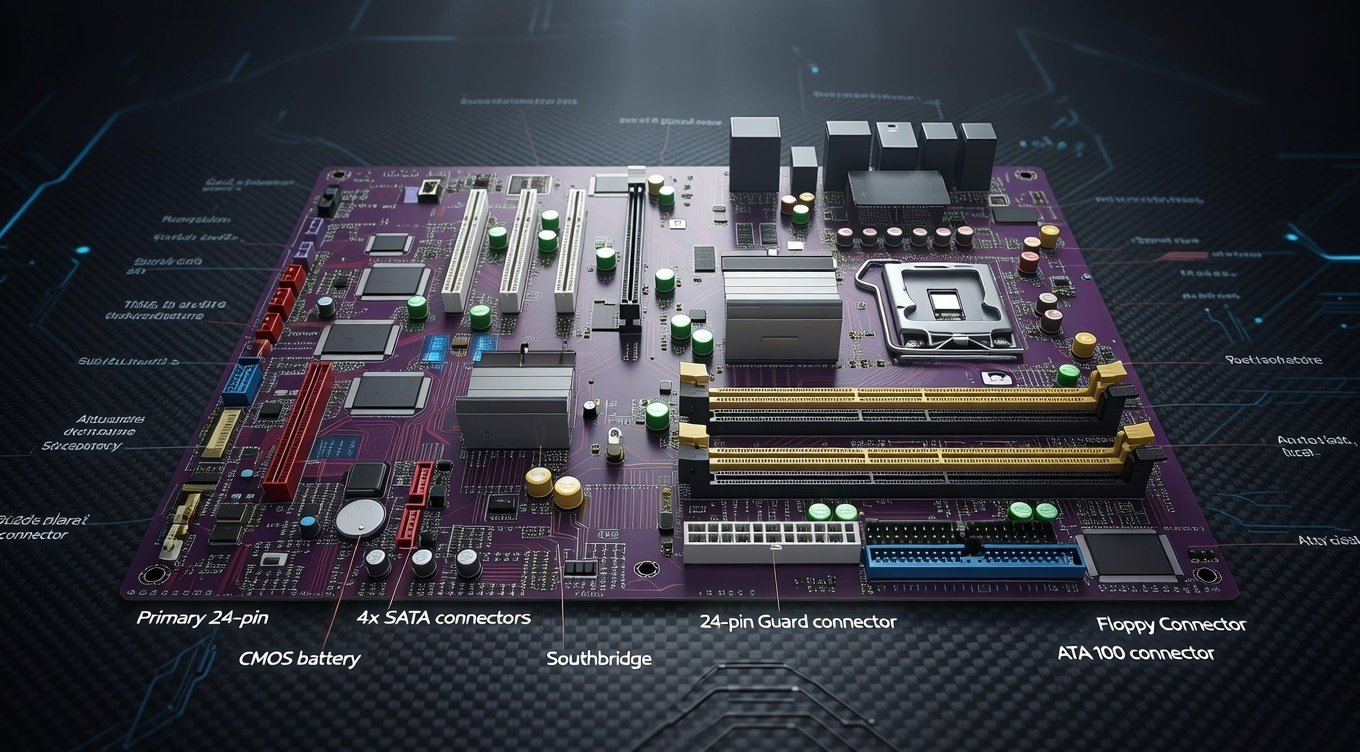
To help you understand what you are looking at, here is a simple table. It breaks down the main parts of a motherboard and what they do. This knowledge makes you a more informed user.
| Component | What It Does | Why It Matters |
|---|---|---|
| CPU Socket | The place where the processor (CPU) sits. | Determines which CPU generations you can use. (e.g., LGA1700, AM5) |
| Chipset | The “traffic cop” that manages data flow between parts. | Controls features like overclocking, USB ports, and PCIe lanes. (e.g., Z790, B650) |
| RAM Slots | Hold the system memory (RAM). | Dictates the type (DDR4/DDR5) and maximum amount of RAM. |
| PCIe Slots | Slots for expansion cards like graphics cards (GPU) or SSDs. | Determines speed (PCIe 3.0, 4.0, 5.0) for add-on cards. |
| Storage Connectors | Ports for drives (SATA for HDDs/SSDs, M.2 for fast NVMe SSDs). | Tells you how many drives you can connect and how fast they can be. |
| Power Connectors | Where the power supply connects (main 24-pin and CPU power). | Ensures you have the right cables from your power supply unit (PSU). |
| Rear I/O Panel | The ports on the back of the PC (USB, audio, network). | Shows your built-in connectivity options without needing extra cards. |
| BIOS/UEFI Chip | A small chip that holds the basic software to start the PC. | A modern UEFI provides a mouse-controlled interface and faster boot times. |
Frequently Asked Questions (FAQs)
1. Can I check my motherboard model without turning on the PC?
Yes, you can. If you have a desktop PC, the best way is to open the case and look at the board itself. The model name is printed directly on the motherboard’s surface. For laptops, the model is often on a sticker on the bottom, but the specific motherboard model might require opening the case or looking up the laptop’s service manual online.
2. Will these methods work on a laptop?
Yes, most of these software methods will work perfectly on a laptop. Tools like System Information, Command Prompt, and CPU-Z will show you the motherboard model of your laptop. However, laptop motherboards are often custom-made for that specific model, so the name might look different, like “LENOVO LNVNB161216.”
3. I found the model number, but I can’t find drivers. What now?
Make sure you are on the official website of your motherboard manufacturer (like ASUS, MSI, Gigabyte, or your PC maker like Dell/HP). Search using the exact model number you found. If you have a pre-built computer like a Dell or HP, it’s better to search by the computer’s service tag or full model number on their support site, as they sometimes customize the drivers.
4. Is it safe to use third-party software like CPU-Z?
Yes, it is very safe. CPU-Z is a trusted tool used by tech experts all over the world. It is a lightweight program that only reads information from your hardware. It doesn’t change any settings. Just make sure you download it from the official CPUID website to avoid fake or malicious copies.
5. Why does my System Information show “To be filled by O.E.M.”?
This is common with pre-built computers from brands like HP, Dell, or Acer, or with some generic motherboards. OEM stands for Original Equipment Manufacturer. It just means the manufacturer didn’t program that specific text field. You should instead look for the system model name, or use the Command Prompt method, which often gives a more accurate result.
6. Does the BIOS version tell me my motherboard model?
Sometimes, but not always. The BIOS version often includes the model name in its code. For example, a BIOS file named “PRIME-B560-PLUS-ASUS-1203” clearly shows the model. However, on some computers, it might just show a number. It is better to use one of the software methods in this guide to get the exact model name directly.
Conclusion
Knowing how to check your motherboard model is a basic skill for any computer user. It opens the door to easy upgrades and simple troubleshooting. You don’t need to be a technician to find it. As we have seen, Windows gives you several built-in tools that take just seconds to use.